
Minecraft Mod for PC: A Simple Guide for Beginners
just now
34Mb
V2.8.9
Android & iOS
500000+

Description
Minecraft is already a huge game, but mods can change the way you play it. A mod may add new items, improve graphics, change gameplay systems, introduce new creatures, or add useful tools. That is why Minecraft mods remain popular with PC players who want something different from the standard game.
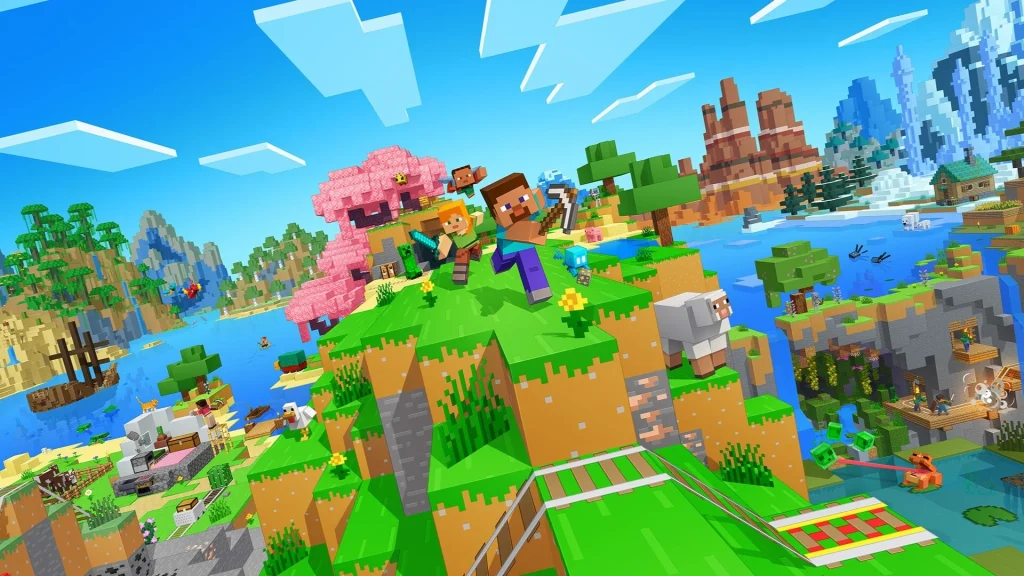
However, installing a mod is not as simple as downloading any file from the internet. The Minecraft version, Java Edition, mod loader, and the mod itself all need to work together. A wrong combination can cause crashes or stop the game from starting.
This guide explains how Minecraft mods work, what to check before installing one, and how to avoid common problems.
What Are Minecraft Mods?
Minecraft mods are third-party modifications that change or extend the game.
Depending on the project, a mod can add new blocks, items, mobs, menus, world features, technical systems, or gameplay mechanics. Some mods make small changes, while others can transform the game into a very different experience.
Minecraft’s official support documentation also warns that third-party Java Edition mods are not created, reviewed, or endorsed by Mojang Studios. It recommends taking care when installing independently developed software.
That does not mean every mod is unsafe. It means players should check where a file comes from and whether it matches their Minecraft setup.
Minecraft Java Mods and Bedrock Add-Ons Are Different
One of the first things a beginner should understand is the difference between Java Edition mods and Bedrock Edition add-ons.
Java Edition has a large third-party modding ecosystem. Players commonly use mod loaders and supporting tools to run compatible modifications.
Bedrock Edition has its own customization system, including add-ons, resource packs, worlds, and creator tools. Minecraft’s official creator resources describe add-ons as a way to customize worlds with items, entities, skins, textures, and other content.
Therefore, do not download a Java mod simply because you are using Bedrock. Always check the edition first.
How to Choose a Minecraft Mod?
Before downloading anything, check these details:
1. Minecraft Version
A mod designed for one Minecraft release may not work with another.
For example, a mod made for an older Java Edition version may fail after you update Minecraft.
2. Edition
Check whether the project supports Java Edition or Bedrock Edition.
This is one of the easiest mistakes for new players to make.
3. Mod Loader
Some Java mods require a particular mod loader. Read the mod’s documentation before installing it.
Do not assume that every mod uses the same system.
4. Dependencies
Some projects require additional libraries or supporting mods.
If the creator lists a required dependency, install the compatible version rather than guessing.
5. Source
Be careful with random download pages, shortened links, suspicious installers, and files that ask for unusual permissions.
A mod should not require you to ignore obvious security warnings just to make it work.
How to Install a Minecraft Mod?
The exact process depends on the mod and loader, but the general workflow is simple.
Step 1: Back Up Your Worlds
Before changing your installation, make a copy of important worlds.
This gives you something to return to if the setup causes a problem.
Step 2: Check the Mod Requirements
Read the project information and note the Minecraft version, edition, loader, and dependencies.
Step 3: Install the Required Mod Loader
If the project needs a specific loader, use the version recommended by the mod creator.
Step 4: Download the Mod
Use a reputable source and verify that the file matches your Minecraft version.
Step 5: Place the Mod Correctly
Java mods normally need to be placed in the appropriate Minecraft mods directory when the required loader is installed.
Do not randomly move files between folders.
Step 6: Start Minecraft
Launch the correct installation and check whether the mod loads.
If Minecraft crashes, do not immediately download another file. First, check the error message.
Why Minecraft Mods Sometimes Crash?
A crash does not always mean the mod itself is bad.
Several things can cause problems.
The most common include:
- Wrong Minecraft version
- Wrong mod-loader version
- Missing dependency
- Two incompatible mods
- Outdated Java setup
- Damaged configuration files
- A mod that has not been updated for the current game release
Minecraft itself notes that modding can be complex and can make the game malfunction or become unplayable.
That is why compatibility checking should happen before installation.
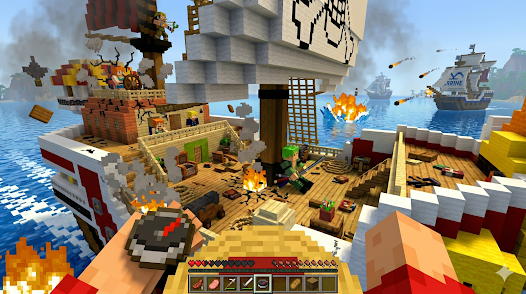
How to Troubleshoot a Broken Mod
- If the game stops working after adding a mod, start with the most recent change.
- Remove the newly added mod and launch the game again.
- If Minecraft works normally, you have a useful clue.
- Next, check the mod’s requirements. Make sure your Minecraft version and loader match the versions listed by the creator.
- If several mods were installed at once, test them individually. This can help identify a conflict.
- Avoid deleting random game files because doing so can create another problem.
Are Minecraft Mods Safe?
There is no single answer for every mod.
Safety depends on the source, file, developer, and installation method.
Before installing a mod, look for:
- A clear project page
- Version information
- Installation instructions
- Known dependencies
- Recent updates
- Community feedback
- A file type appropriate for the mod
Also scan downloaded files with your security software.
Be especially careful with executable files that are unrelated to what the mod is supposed to do.
Mods Can Also Become Outdated
Minecraft receives updates, and those updates can affect third-party modifications.
A mod that worked perfectly yesterday may stop working after a Minecraft update.
This is normal in third-party modding.
Minecraft’s current support and creator resources continue to publish version and creator information, so checking compatibility is important before changing your installation.
Minecraft Mods vs Resource Packs
These are often confused.
A resource pack mainly changes visual or audio assets, such as textures, sounds, or interface elements.
A mod can change the game’s behavior and add new systems or mechanics.
In simple terms:
Resource pack = changes how things look or sound.
Mod = can change how the game works.
Both can make Minecraft feel different, but they are not the same type of customization.
Should You Update Minecraft Before Installing a Mod?
Not always.
If you have a modded setup that works well, immediately updating the game can create compatibility problems.
Before updating, check whether your important mods support the new version.
For a fresh installation, it is usually easier to choose the Minecraft version first and then build the mod setup around it.
Final Thoughts
Minecraft mods give PC players many ways to customize the game, but a good mod setup starts with compatibility rather than simply downloading as many files as possible.
Check the edition, Minecraft version, loader, dependencies, and source before installing anything. Also keep backups of important worlds.
Most importantly, remember that third-party mods are separate from the official Minecraft game. Mojang’s support documentation states that these mods are not created, reviewed, or endorsed by Mojang Studios.
A careful approach can save you from crashes, lost worlds, and unnecessary troubleshooting while giving you more freedom to enjoy a customized Minecraft experience.